

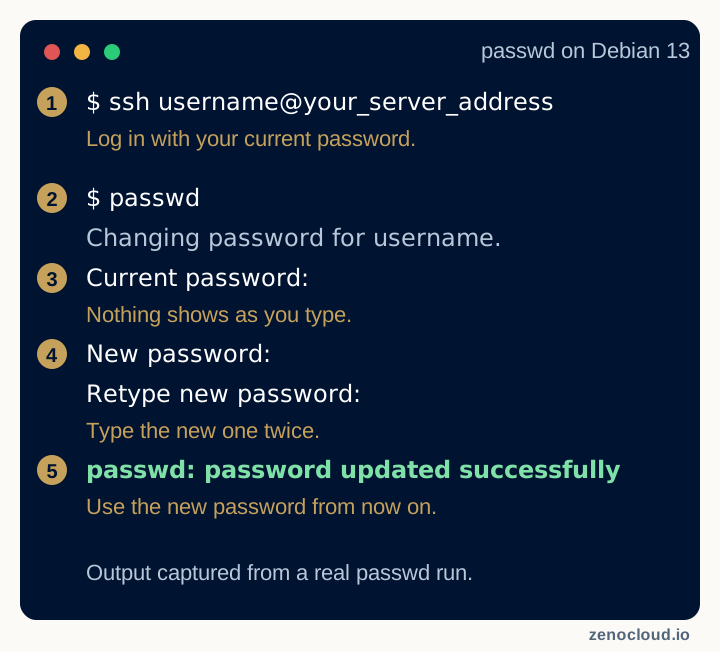
Log in over SSH and run passwd. It asks for your current password, then the new one twice. To reset another user's password, run sudo passwd username as root or a sudo user; it does not ask for the old password.
# your own password
passwd

# another user's password
sudo passwd username
Change your SSH password, step by step
- Log in:
ssh username@your_server_address. - Run
passwd. It printsChanging password for username. - Enter your current password. Nothing is shown as you type.
- Enter the new password at
New password:, then again atRetype new password:. - Look for
passwd: password updated successfully.
Your open session stays connected. The new password applies from the next login, so keep the old session open until you have tested it in a second one.
If passwd fails
BAD PASSWORD: ...means the password broke a complexity rule (too short, too similar to the old one, or a dictionary word). Pick a longer one: 12 or more characters is a good floor.You must wait longer to change your passwordmeans a minimum password age is set. Check it withchage -l username(usesudofor other users); the "Minimum number of days" line shows the limit.Authentication failureorAuthentication token manipulation errorusually means the current password was typed wrong. If it fails with the right one, check for a read-only filesystem or a full disk.
Change an SSH key passphrase
An SSH key passphrase is not your account password. It only locks the private key file on your computer, so passwd never changes it. On the machine that holds the key, run:
ssh-keygen -p -f ~/.ssh/id_ed25519Enter the old passphrase, then the new one twice. The key stays the same, so nothing changes on the server. Use your own key path if it differs.
Disable password login (use keys)
Once key login works, turn passwords off. In /etc/ssh/sshd_config set PasswordAuthentication no, then run sudo systemctl restart sshd (the service is ssh on some Debian and Ubuntu releases). Test a key login in a second session before closing the first.
On a Managed Server we do this hardening for you, with patching and 24/7 monitoring, from ₹9,999 a month per server.