Have you ever encountered the following problem?
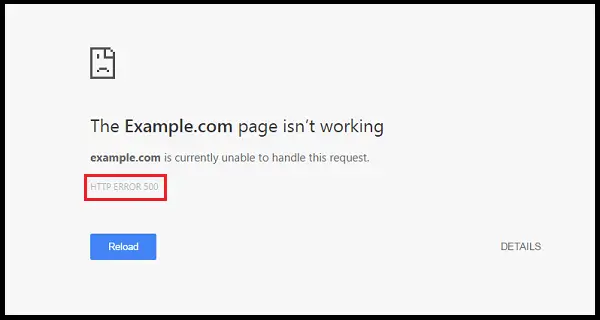
“This page isn’t working
yoursite.com is currently unable to handle this request.
HTTP Error 500”
Yes or No
For example, when you type in your website’s URL, you don’t see your home page content, but a blank page with these ominous words written on top of it.
What is HTTP Error 500?
The HTTP Error 500 is quite a common HTTP status code which indicates that something is not right on the website’s server end but the exact problem is unknown.
In this article, we will be discussing possible ways to solve the 500 Internal Server Error problem.
- What does it mean by 500 Internal Server Error?
- Why do you get a 500 Internal Server Error?
- Does HTTP Error 500 affect SEO?
- How to Fix 500 Internal Server Error?
What does it mean by 500 Internal Server Error?
When you type in the domain name of a website, the browser sends a request to the server on which the site is currently hosted. The server takes the request, processes it and returns it to the requested sources along with an HTTP header including the status code.
An HTTP status code helps you in identifying the status of your request. There are mainly 2 types of status code:-
- 200 status code, which means “Everything is OK”
- 500 status code, which means something is not right.
Different types of 500 internal server errors are:-
- 500 Internal Server Error
- HTTP 500 – Internal Server Error
- Temporary Error (500)
- Internal Server Error
- HTTP 500 Internal Error
- 500 Error
- HTTP Error 500
- 500. That’s an error
If it is a Windows server using Microsoft IIS 7.0 or above, the error code will be specified as shown below:-
- 500.0: Module or ISAPI error occurred.
- 500.11: Application is shutting down on the web server.
- 500.12: Application is busy restarting on the web server.
- 500.13: Web server is too busy.
- 500.15: Direct requests for global.asax are not allowed.
- 500.19: Configuration data is invalid.
- 500.21: Module not recognised.
- 500.22: An ASP.NET httpModules configuration does not apply in Managed Pipeline mode.
- 500.23: An ASP.NET httpHandlers configuration does not apply in Managed Pipeline mode.
- 500.24: An ASP.NET impersonation configuration does not apply in Managed Pipeline mode.
- 500.50: A rewrite error occurred during RQ_BEGIN_REQUEST notification handling. A configuration or inbound rule execution error occurred.
- 500.51: A rewrite error occurred during GL_PRE_BEGIN_REQUEST notification handling. A global configuration or global rule execution error occurred.
- 500.52: A rewrite error occurred during RQ_SEND_RESPONSE notification handling. An outbound rule execution occurred.
- 500.53: A rewrite error occurred during RQ_RELEASE_REQUEST_STATE notification handling. An outbound rule execution error occurred. The rule is configured to be executed before the output user cache gets updated.
- 500.100: Internal ASP error.
Why do you get a 500 Internal Server Error?
There can be many reasons behind a 500 Internal Server Error. Some of those reasons are mentioned below:-
- Browser Cache and Cookies
- Login credentials to the MySQL database are incorrect
- The database is corrupt
- Corrupted WordPress installation or core files
- Issues with your database server
- Corrupted .htaccess file and PHP memory limit
- Problems with third-party plugins and themes
- Critical PHP errors or PHP timing out with third-party plugins
- Permissions of the file and folder are incorrect
- The PHP memory limit on your server is finished
- Your .htaccess file is broken or corrupted
- If there are problems in the CGI and Perl scripts
Does HTTP Error 500 affect SEO?
The answer is No if the error exists for a few minutes or seconds. But if it persists for hours, then it can hurt your website’s rankings.
Therefore, if your site constantly goes down, you must check in with your web host provider for the possible reasons.
How to Fix the 500 Internal Server Error?
Now we have discussed in detail the issue of 500 internal server error. What it is, its different types, and why it happens.
HTTP Server Error 500 may occur if there is an issue on either the client-side or a problem with the server. We will cover solutions for both problems:-
Try Reloading Web Page
The first thing you should do when confronted by a 500 HTTP error is try reloading the page (F5 or Ctrl + F5). It may be possible that the server is simply overloaded, and the website will come back shortly in a few seconds.
You can also try to open the website in another browser to rule that out as an issue.
You can also check if the issue is from your side or if the site is down by pasting your website URL into downforeveryoneorjustme.com.
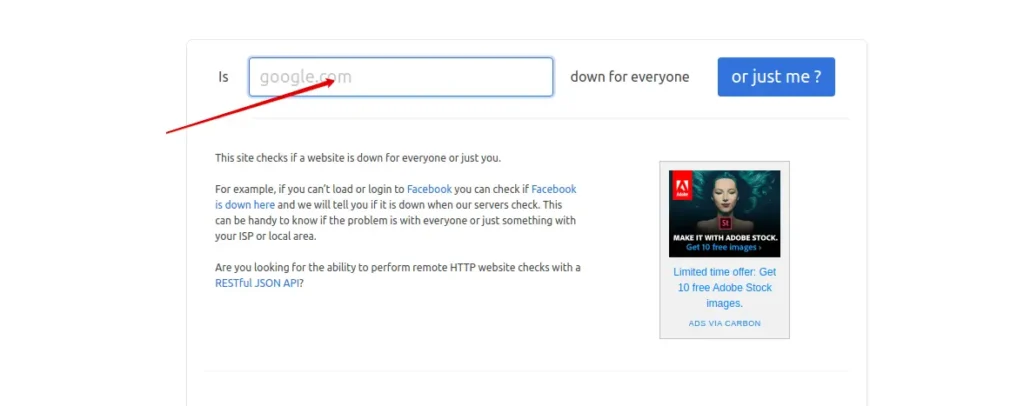
It is an amazing tool that examines the HTTP status code that is returned from the server. In case the status code is not 200, it will give a down indication.
It is also possible that this error happened immediately after you updated a plugin or theme on your website. This problem occurs on servers that aren’t set up properly.
So they experience a time-out of a few seconds. Therefore, reloading the page can solve these issues.
Restart the browser after clearing the cache & cookies
The 500 internal server error may happen due to caching issues, which can be fixed by restarting the browser after clearing the cache and cookies.
For Google Chrome, you can follow the steps below:-
- Open Google Chrome
- Click on the 3 dots present at the top right-hand side of the browser
- Go to More Tools << Clear Browsing Cache
- Alternatively, you can press Ctrl + Shift + Delete
- A new window to clear the browsing data will open
- Check the Cookies and other site data box, along with the cached images and files box.
- Click on the button “Clear data”.
For Mozilla Firefox, you can follow the steps:-
- Open Mozilla Firefox
- Click on the library icon at the top right-hand side of the browser
- Go to History << Clear Recent History
- Click the drop-down menu next to Time range to choose how much of your history Firefox will clear (the last hour, the last two hours, the last four hours, the current day or everything).
- Check the cookies and cache box.
- Click on the button “Clear Now”.
Check your Server Logs
You can also check your error logs to detect the possible reason behind the 500 Internal Server Error.
You can add the following code to your wp-config.php file to enable logging:-
define( ‘WP_DEBUG’, true );
define( ‘WP_DEBUG_LOG’, true );
define( ‘WP_DEBUG_DISPLAY’, false );
The logs are generally located in the /wp-content directory under the name of logs:-
Apache (Apache: /var/log/apache2/error.log) or NGINX (/var/log/nginx/error.log)
You can also enable PHP error reporting. Simply add the following code to the file throwing the error. You can access it in the console tab of Google Chrome DevTools.
ini_set(‘display_errors’, 1);
ini_set(‘display_startup_errors’, 1);
error_reporting(E_ALL);
You may also have to modify your php.ini file with the following:
display_errors = on
Error establishing a database connection
WordPress makes use of PHP commands to connect to the MySQL database, retrieve the information it requires and then displays everything on the screen.
Error establishing a database connection WordPress occurs when the connection between MySQL and PHP is not working properly.
That is why you see this error on a blank page. When you can’t connect to the database, there is no way to know what to present; no data of your site is available.
There can be many reasons why there are connection problems between PHP code and MySQL, such as-
- Incorrect database login details. It may be possible that your database credentials are wrong or have been changed recently. MySQL database uses separate logins to establish a connection with WordPress.
- Your database is corrupt. It may occur in case you have installed a poorly coded plugin,a hacker’s attack or the deletion of crucial information.
- Corrupt WordPress files. An error in establishing a database connection may also happen if your WordPress installation files are corrupted due to a failed software update, hackers, etc.
- An issue with your web hosting server. This is quite common if your website is hosted on shared servers where a lot of users are utilising the same resources. Therefore, your site goes down whenever there is a spike in traffic or there are too many concurrent connections.
- Too much traffic. If there is a sudden spike in your website traffic, your server may not be able to handle so many requests at the same time. In that case, you can expect downtime.
Check If Your Plugin or Theme Files Haven’t Been Corrupted
- First, connect to your host via FTP. You can do this with a free tool called FileZilla.
- In order to connect, you need a login and a password for your FTP account
- Connect to the server and navigate to the WordPress root folder (“public_html” or “www”)
- Go into “wp-content” and rename the “plugins” folder to something else, such as plugins_
- Go back to your site and see if the error is still there.
- If not, you now know that it’s been caused by some plugin.
- Go back to FTP, rename the folder back to “plugins”.
- Go into it and change the folder names of the individual plugins, one by one. The easiest way to do this is to add an underscore at the end: “_”
- Keep coming back to your site to see when the error gets triggered or vanishes.
- Once you’ve narrowed it down to one specific plugin, you have found the troublemaker.
- Either delete it or go online to see if the solution has been documented.
- If the error is still there even after renaming the “plugins” folder, go through the exact same process with the “themes” folder.
- If that doesn’t help, rename both folders back to “plugins” and “themes”. The error is caused by something else.
Restore The Default WordPress Files
If the issue is still not resolved, then you can restore the default WordPress files. A database connection error can occur due to corruption in the core WordPress files.
Maybe there was an attack by a hacker, a malicious plugin, or you modified some files by accident.
Whatever the reason it might be, you can still restore native WordPress files by downloading a clean version of WordPress from WordPress.org and copying it over the one you have right now.
Steps to restore the default WordPress files are given below:-
- Go to https://wordpress.org/download/
- Download the latest package to your desktop.
- Unpack it and delete the “wp-content” folder
- Connect your site via FTP
- Visit the main WordPress root
- Upload your new WordPress files and overwrite all the previous ones.
- After it is done, check your website to see if the error has been resolved or not.
If this also fails, then you must contact your web hosting provider immediately for help.