Are you looking to force strong passwords on users in WordPress?
The WordPress password security is no joke. You must ensure that every WordPress blog user uses a strong password.
In this quick tutorial, we will learn to force strong passwords on users in WordPress with the help of a plugin.
Why Force Strong Passwords on Users?
A strong password makes the website secure from brute force attacks and social engineering attacks. Protecting the WordPress login page is an integral part of WordPress’s security strategy.
You can disable remember me, add a security question and limit login incorrect password to discouraged the spammers.
You might follow the WordPress password security best practices, but your user might not. If you are running an online store, membership site, or blog with multiple authors, there is always a risk that the users will keep a secure password.
If the hackers get hold of one account, the hackers could take control of the complete website via SQL injection or using the account to send spam emails. People using weak passwords is a security threat to the entire organization.
But is it their responsibility to create a strong password? Or is it yours to enforce it to protect your organization?
Well, the WordPress website has an inbuilt feature to create a strong password. But it is rather flexible and does not force anyone to follow the best practices.
The good thing is there is a plugin that can set up a password policy.
Enforce Secure Passwords on your WordPress with Password Policy Manager?
The simplest way to force strong passwords on your WordPress website is by installing Password Policy Manager, a plugin that enhances the password features.
A known WordPress security developer, WP White Security, created the plugin. It gives a set of tools to tighten password security. For example, you can set the password expiry time.
Install the Plugin
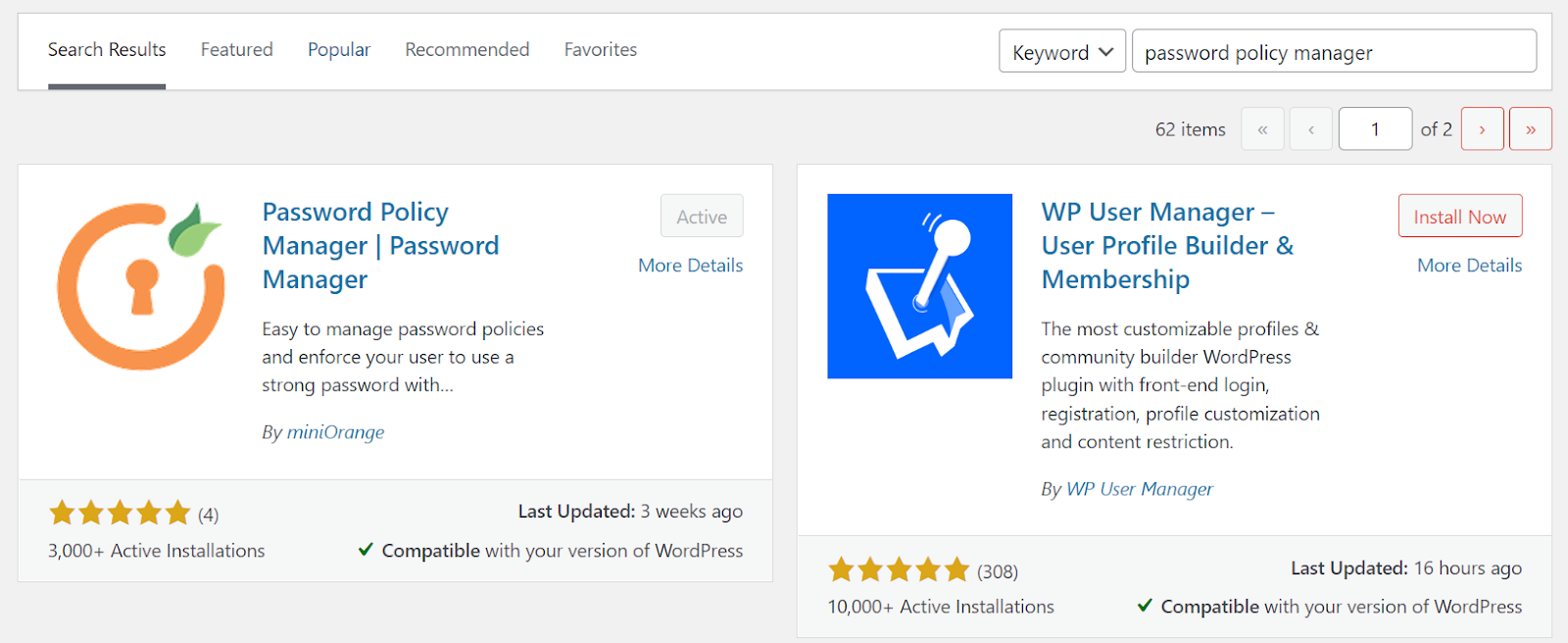
Navigate to the Plugins >> Add New on the left side panel on the WordPress admin dashboard.
Search the ‘Password Policy Manager’ and install the one from miniOrange.
Configure the Plugin
Once the plugin is activated, you will be redirected to the setting page. If not, you can find the plugin setting on the left side panel as a separate option.
Pick the Role

With the free version, you can apply the Policy settings for all the users. The paid version allows setting the policies according to the WordPress user roles.
Enable Disable the Plugin Setting

Password Policy Settings enable/disable button is the first setting. You can turn the plugin off with one click.
Set Policy Setting
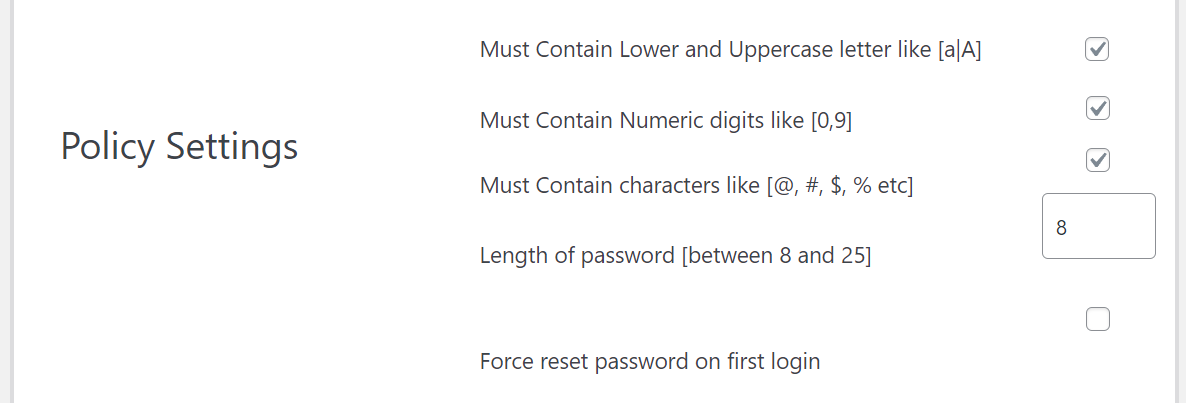
Use the checkboxes to enable a setting for the password. You can increase the password length up to 25 characters.
Expiry Time
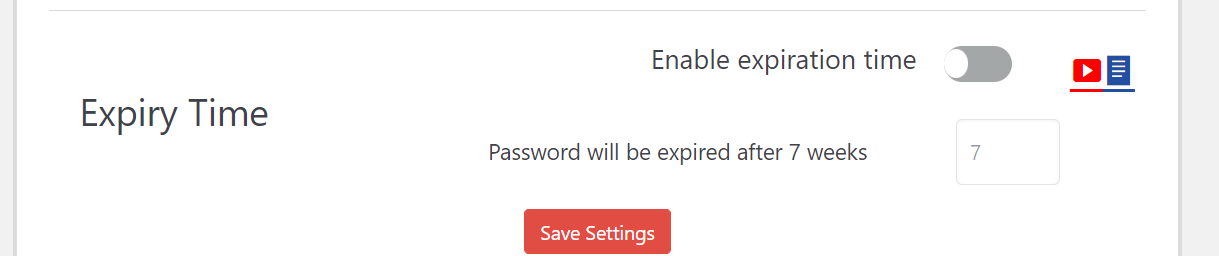
Changing the password regularly is a best practice, but no one wants to do that. We all find comfort in our past, no matter how horrible it is. The change brings discomfort to the present, which we have been accustomed to managing. The external force is required to change the momentum.
Hence, setting the expiry date of passwords forces the users to change their passwords regularly and keep the account secure. The setting automatically log out the WordPress users and force them to reset the password.
One Click Password Reset

With one click, you can reset the passwords of all WordPress users. It is a useful function in case of a security breach.
FAQ
How do I make my WordPress site more secure?
There are many ways to secure a WordPress website, including using strong passwords, limiting the login to the incorrect password, hiding the login page, hiding the WordPress version, disable PHP execution, disable file editing, disable image hotlinking, and forcing users to use strong passwords.
Wrap Up
WordPress password security is the first step toward WordPress security. With the help of your hosting provider (firewalls, spambots prevention, and automated backups), you can ensure your website stays secure all the time.
In this quick tutorial, we learned to force strong passwords on users in WordPress. If you encounter any issues, please feel free to leave them in the comment section.